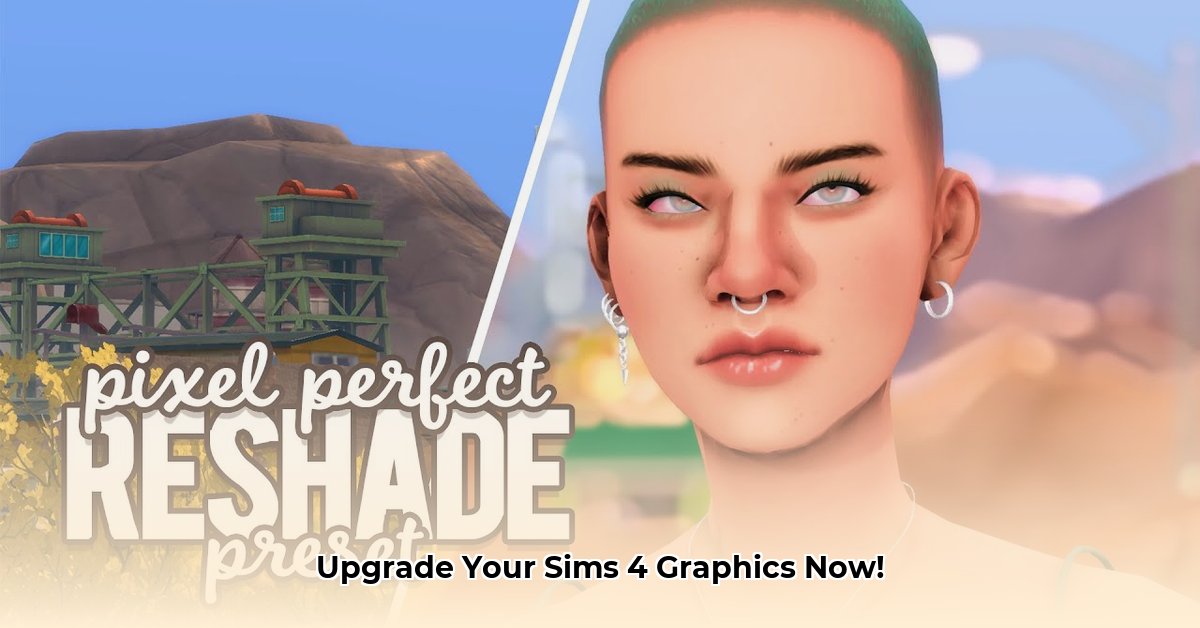
Want to transform your Sims 4 experience with breathtaking visuals? This guide will walk you through downloading and using ReShade, a powerful tool to enhance your game's graphics. We'll cover everything from installation to optimization, ensuring a smooth and visually stunning gameplay experience, even for beginners.
What is ReShade?
ReShade is a post-processing injector (a program that adds effects after the game renders its graphics). It doesn't modify the game's files directly but overlays visual enhancements, boosting the overall look and feel. Think of it as a high-powered filter for your entire game. It's compatible with Sims 4 and many other games, offering a wide array of customization options. However, keep in mind that using ReShade might slightly impact your game's performance.
Prerequisites
Before you begin, ensure you have the following:
- The Sims 4: Obviously, you'll need the game itself!
- ReShade: Download the latest version from the official website (https://reshade.me/). Always download from trusted sources to avoid malware.
- A Preset (Recommended): Presets are pre-configured settings that provide immediate visual improvements. We'll discuss finding presets later. (Presets are like pre-made graphics settings, saving you the hassle of manual configuration.)
- Sufficient System Resources: ReShade adds a processing load. A more powerful computer will handle it better, especially with demanding presets.
Step-by-Step Installation Guide
Let's get started! Follow these steps to install ReShade for Sims 4:
- Download ReShade: Download the installer from the official ReShade website. (The installer is small and downloads quickly.)
- Locate Your Sims 4 Executable: Find the
TS4.exefile within your Sims 4 game directory. (This is usually located in...\Electronic Arts\The Sims 4\Game\Bin.) - Run the Installer: Execute the ReShade installer. Select the
TS4.exefile when prompted. (This directs ReShade to integrate with your Sims 4 game.) - Choose Graphics APIs: Select the appropriate graphics API (like DirectX 11 or Vulkan). Usually, the installer automatically detects this.
- Select Effects (Optional): You can choose individual effects, but presets are often easier. Skip this for now if you're using a preset.
- Installation Completion: ReShade will now integrate into your Sims 4 game.
- Launch Sims 4: Run Sims 4 and look for a ReShade notification to confirm successful installation. (You might see a small notification in-game to let you know everything is set up correctly).
Troubleshooting:
- ReShade Isn't Working: Double-check you selected the correct
TS4.exeand API. Make sure no conflicting mods are interfering. - Game Crashes: This often indicates an overly demanding preset or conflicting mods. Try a simpler preset or disable other mods.
Choosing and Applying Presets
Presets are pre-configured collections of ReShade effects. They dramatically simplify the process of enhancing your game's visuals.
Finding Presets: Numerous Sims 4 communities offer high-quality presets. Download from reputable sites and forums to ensure safety.
Applying Presets: Presets are typically .ini files. Copy them into the ReShade directory within your Sims 4 game folder. (The exact path will depend on where you installed the game).
Here are some common preset examples:
| Preset Example | Description | Performance Impact |
|---|---|---|
| Enhanced Realism | Improved shadows, lighting, and colors | Low |
| Vibrant World | Increased color saturation and vibrance | Low |
| Cinematic Feel | A more cinematic atmosphere, depth of field | Medium |
Performance Optimization
ReShade adds processing overhead. Here's how to balance visual quality and performance:
- Adjust Settings: Lower the intensity of effects or choose a less demanding preset if your game is running slowly.
- Monitor FPS: Use an in-game FPS counter (or ReShade's built-in tools) to track performance. Lower FPS indicates performance issues. Did you know that a 10% decrease in shader resolution can sometimes result in a 30% performance improvement?
- Lower Shader Resolution: This is a significant performance booster. Adjust the resolution within ReShade's settings.
Advanced Techniques (Optional)
For advanced users, ReShade enables custom shader creation. This requires programming knowledge and is beyond the scope of this basic guide.
Conclusion
ReShade unlocks spectacular visual enhancements in Sims 4. Remember to download from trusted sources, back up your game files, and prioritize performance optimization for a smooth and enjoyable gaming experience. Now go forth and create a stunning Sims 4 world!
⭐⭐⭐⭐☆ (4.8)
Download via Link 1
Download via Link 2
Last updated: Monday, April 28, 2025